Posts

Showing posts with the label WPF

Start template for Xaml MapControl

Image
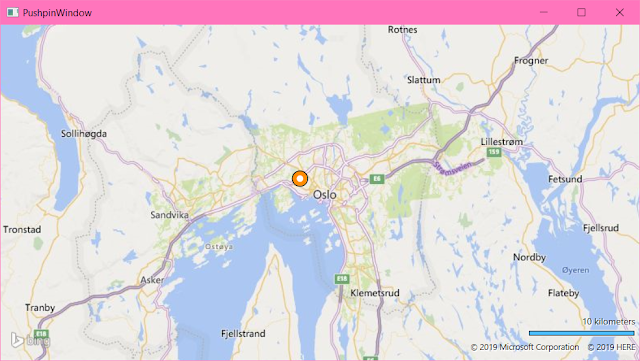
 The Xaml.MapControl comes with a nice example that sow different options. This can be found in the examples directory at  https://github.com/ClemensFischer/XAML-Map-Control . This post is meant to show a more simple solution. And my hope is that I can use this as a start template. The goal is to end up with this view: And this is the steps to get this going: Create new project and setup  Create a new project in Visual Studio. When writing this I selected the tradistional .Net Framework 4.8. Then I installed the Map Control by the package manager console:      PM> Install-Package XAML.MapControl For this template I didn't use any MVVM Frameworks. This is to make less depentant on third-party solutions. I used the base MVVM template I wrote aboute in:  Absolute Mini MVVM .  Copy those two classes to the folder explained below.   Then I made the following folders in Visual Studio: Models Views ViewModels AbsoluteMiniMvvm Extensions For thi...

Absolute minimal MVVM

Since I have plans for showing some examples using WPF with MVVM, I thought it would be a good idea to post the code for a very basic MVVM template. This is so I don't have to rely on some advanced frameworks. And this way the examples can focus on the issue at hand. The files may be placed in a library and referenced by several projects, or they may be copied inside the project itself. The first class to be used is the base for handling INotifyPropertyChanged in the ViewModels and models: using System.ComponentModel; using System.Runtime.CompilerServices; namespace AbsoluteMiniMvvm { public class PropertyChangedBase : INotifyPropertyChanged { public event PropertyChangedEventHandler PropertyChanged; public void RaisePropertyChanged([CallerMemberName] string propertyName = null) { PropertyChanged?.Invoke(this, new PropertyChangedEventArgs(propertyName)); } } } The second is for the Command: namespace AbsoluteMiniMvvm { public class Command : ICommand { ...

Minimal example for "Xaml MapControl"

Image
I have mentioned the map control named "Xaml.MapControl" by Clemes Fischer on this blog earlier. This is a very good map control for use in WPF applications and some of the main features are: It can get tiles from many sources such as "Open Street Map", "Bing Maps" and custom sorces by using a url format string. It can also have WMS layers on from different sources, and you may also add your own tile sources or images. You can display UI elements on the map. The mapp add Points, Lines, Elipses and Polygons but you may add xaml-elements yourself to be displayed on your map.  XAML and MVVM support.  Using ItemsControls for multiple elements. Since it is meant to be used in MVVM and XAML it is very flexible. You can provide data for the map by using WPF binding. You can style it with WPF templates and styles. And adjust data by using WPF converters. I wanted to write this post to show the most simple and basic way to get a map in a WPF application. And this i...

Custom Pushpin in Bing Maps Control for WPF

Image
Pushpins in "Bing Maps Control for WPF" can be styled in XAML. The code below may seem a bit much, but this is actually very flexible and easy to adjust. And it doesn't require code-behind that is forgotten when copying, problems with change of names that isn't reflected in code or overriding rendering events. It also get additional benefits at a later stage since this can also contain text( see below ) be data-bound, bound to other controls or templates or be rotated and transformed. We could also control size or placement according to converters related to real-world sizes like meters or have it's visbility set according to zoom-level. This is out of scope here but I will try to get to that later. In the example below the styles are placed inside the map-control in <m:Map.Resources> . This is handy when designing or for a cut-copy-paste library. But this get quite a bit readable when it's moved into an Application.Resource in App.Xaml or in it...

Remove default Bing Map Layer from the WPF-MapControl

Image
When providing your own tiles to the Map Control in WPF you would want to remove the default map being served by Bing behind your own source. This is the "full" XAML block from one of my example projects: <m:Map Center="48.03,-122.4" Name="MyMap" CredentialsProvider="YOUR-BINGMAP-KEY" ZoomLevel="10"> <m:Map.Mode> <!-- set empty map mode to remove default map layer --> <m:MercatorMode /> </m:Map.Mode> <!-- Included for completeness, but to be replaced by yor own code or wait for a post about this -->     <!-- <local:MyTileLayer x:Name="WebMapLayer" UriFormat="{Binding SelectedTileProvider.UriFormat}"> <m:MapItemsControl ItemsSource="{Binding Places}"> <ItemsControl.ItemTemplate> <DataTemplate> <m:PushPin ...

Bing Maps Control for WPF with Essential Tools

There are alternatives, but the basic Bing Maps for WPF has a lot of resources and a strong documentation available. Microsoft has moved the focus to the UWP-version and the WEB-version, but for desktop applications that requires local file operations this is still the basic tool. I have been using " XAML Map Control " by Clemens Ficher a lot. But since that control is modelled after the features of "BingMaps"the toolkits below will still be relevant. To get started we should get the bing-map-key from Microsoft here: https://www.bingmapsportal.com/ First off there is the Control itself. It can be found on Nuget: PM> Install-Package Microsoft.Maps.MapControl.WPF Then I add the Spatial Toolbox ( see below ). This is not on Nuget, so you have to download it , unpack it, and then include it to your project. You can add a reference to the toolbox project to your solution (Located in the archive folders, and named: Microsoft.Maps.SpatialToolbox.Core and Micros...

Tip to enable key-events in WPF

Working on a project with editing shapes I came over a problem when I wanted to canced the operation when the user pressed the escape-key. When I added an event handler for KeyPress or KeyDown or even PreviewKeyDown it never fired. This was because the graphical elements didn't actully have focus. For my user-control for the graphic element I solved this by adding this in the constructor: this.Focusable = true; this.FocusVisualStyle = null; The second line ensured that the dotted focus-rectangle also disseapeared. For a xaml-based approach this is the markup: <Canvas Focusable="True" FocusVisualStyle="{x:Null}">  <!-- The shapes or elements like an elipse, rectangle, path or stack-panel... --> </Canvas>